Showing posts with label network services. Show all posts

Tuesday, June 7, 2022

TryHackMe Wireshark 101: Task 9 TCP Traffic

 TCP Overview

TCP or Transmission Control Protocol handles the delivery of packets including sequencing and errors. You should already have an understanding of how TCP works, if you need a refresher check out the IETF TCP Documentation.


Below you can see a sample of a Nmap scan, scanning port 80 and 443. We can tell that the port is closed due to the RST, ACK packet in red.


53 
38.8998% 
192.168.227.128 
54 
38.899873 
192.168.227.128 
92.168.227.1 
56 
38.899938 
192.168.227.128 
57 
38.89994ø 
192.168.227.131 
58 
38.899971 
192.168.227.131 
192.168.227.131 
e.e.e.8e 
92.168 
e.e.e 
192.168.227.128 
192.168.227.128 
TCP 
TCP 
TCP 
TCP 
TCP 
74 478% 
74 
351332 
4872ø 
74 
3451e 
[sym) seq=e win=6424e Len-a mss=146e SACK PERM-I TSva1=74ge56 Tsecr=e WS=128 
(sym) seq=e win=6424e Len-a mss=146e SACK PERM-I TSva1=16152451e1 Tsecr=e WS=128 
443 [SYN] seq=ø Win=6424ø Len=ø mss=146ø SACK PERm=1 TSva1=749ø56 WS=128 
443 [syli] seq=e win=6424e Len-e mss=146e SACK PERN=I TSva1=16152451e1 Tsecr=e ids=128 
8Ø * 478ØØ CRST, seq=l Ack=l Win=ø Len=ø 
6Ø 443 * 4872Ø CRST, seq=l Ack=l Win=ø Len=ø


When analyzing TCP packets, Wireshark can be very helpful and color code the packets in order of danger level. If you can't remember the color code go back to Task 3 and refresh on how Wireshark uses colors to match packets.


TCP can give useful insight into a network when analyzing however it can also be hard to analyze due to the number of packets it sends. This is where you may need to use other tools like RSA NetWitness and NetworkMiner to filter out and further analyze the captures.


TCP Traffic Overview

A common thing that you will see when analyzing TCP packets is known as the TCP handshake, which you should already be familiar with. It includes a series of packets: syn, synack, ack; That allows devices to establish a connection.


Time 
1 ø.øøøøøø 
2 e.3e7187 
3 e.3ß7372 
Source 
192.168.1.1ø4 
216.18.166.136 
192.168.1.1ø4 
Destnaton 
216.18.166.136 
192.168.1.1ø4 
216.18.166.136 
Pr o tocol 
TCP 
TCP 
TCP 
Length 
74 49859 * 8ø 
74 
* 49859 
66 49859 * 
[sym, 
seq=3588415412 Win-8192 Len=ø mss=146ø SACK PERm=1 TSva1=3ß5762 Tsecr=ø 
Ack=3588415413 win-5792 Len-a mss=144e TSva1=1315eg2752 Tsecr=3ß5762 WS=512 
seq=6g7411256 
seq=3588415413 Ack=6g7411257 Win-17136 Len-a TSva1=3ß5793 Tsecr=1315eg2752


Typically when this handshake is out of order or when it includes other packets like an RST packet, something suspicious or wrong is happening in the network. The Nmap scan in the section above is a perfect example of this.


TCP Packet Analysis

For analyzing TCP packets we will not go into the details of each individual detail of the packets; however, look at a few of the behaviors and structures that the packets have. 


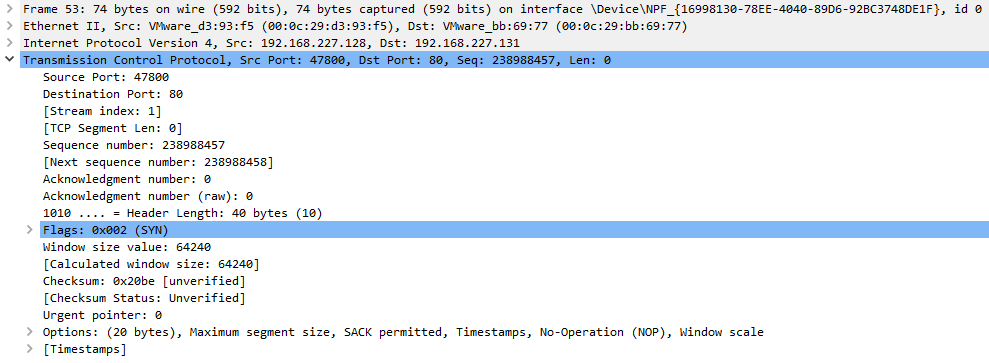
Below we see packet details for an SYN packet. The main thing that we want to look for when looking at a TCP packet is the sequence number and acknowledgment number.


Wireshark Packet 53 VMware Network Adapter VMnet8 
Frame 53: 74 bytes on wire (592 bits), 74 bytes captured (592 bits) on interface 
Ethernet 11, src: Dst: 
Internet Protocol Version 4, src: 192.168.227.128, Dst: 192.168.227.131 
id 
Source Port: 478% 
Destination Port: 8ø 
[Stream index: I) 
C TCP Segment Len: 
Sequence number: 
Se uence number raw : 
(relative sequence number) 
238988457 
CNext sequence number: I 
(relative sequence number)) 
Acknowled ent number: 
Acknowledgment number (raw): 
Ima . 
Header Length: 4ø bytes (la) 
Window size value: 6424ø 
[Calculated window size: 64240 
Checksum: øx2øbe Cunverified) 
(Checksum Status: Unverified) 
Urgent pointer: 
Options: (2ø bytes), Maximum segment size, 
C Timestamps) 
SACK perrnitted , 
Timestamps , 
No-operation (NO?) , 
Window scale


In this case, we see that the port was not open because the acknowledgment number is 0. 


Within Wireshark, we can also see the original sequence number by navigating to edit > preferences > protocols > TCP > relative sequence numbers (uncheck boxes).


Wireshark Preferences 
Steam IHS Di A 
SUA 
SYNC 
SYNCHROPF 
Synergy 
Syslog 
TACACS 
TACACS+ 
TAPA 
TCPENCAP 
TCPROS 
TDMoE 
TDMoP 
TeamSpeak2 
TELNET 
Transmission Control Protocol 
Z] Shon TCP summary n protocol tree 
Validate the TCP checksum if possible 
Z] Allon subdissector to reassemble TCP streams 
Reassemble out-of-order segments 
Z] Analyze TCP sequence numbers 
Relatve sequence numbers (Requires •Analyze TCP sequence numbers") 
Scaling factor to use when not available from capture Not known 
Z] Track number of bytes in flight 
Z] Calculate conversation timestamps 
Try heurisbc sub-dissectors first 
Ignore TCP Tmestamps n summar y 
Z] Do not call subdissectors for error packets 
Z] TCP Experimental Options With a Magic Number 
Display process information via [PFIX 
TCP I-IDP port O


Frame 53: 
Ethernet 
Internet 
74 bytes on wire (592 bits), 74 bytes captured (592 bits) on interface 
11, src: Dst: 
Protocol Version 4, src: 192.168.227.128, Dst: 192.168.227.131 
id 
Source Port: 478% 
Destination Port: 8ø 
[Stream index: I) 
C TCP Segment Len: 
Sequence number: 238988457 
[Next sequence number: 238988458) 
Acknowledgment number: 
Acknowledgment number (raw): 
— Header Length: 4ø bytes (la) 
Window size value: 6424ø 
[Calculated window size: 64240 
Checksum: øx2øbe Cunverified) 
(Checksum Status: Unverified) 
Urgent pointer: 
Options: (2ø bytes), Maximum segment size, 
C Timestamps) 
SACK perrnitted , 
Timestamps , 
No-operation (NO?) , 
Window scale


Typically TCP packets need to be looked at as a whole to tell a story rather than one by one at the details.


Answer the questions below


Read the above and move into Task 10.

How to: No Answer Needed

Answer:  No Answer Needed


From <https://tryhackme.com/room/wireshark


TryHackMe Wireshark 101: Task 8 ICMP Traffic

 ICMP Overview

ICMP or Internet Control Message Protocol is used to analyze various nodes on a network. This is most commonly used with utilities like ping and traceroute. You should already be familiar with how ICMP works; however, if you need a refresher, read the IETF documentation.


Below you can see a sample of what a ping would look like, we can see a request to the server from ICMP, then a reply from the server.


75 61.879584 
78 61.879932 
Source 
86.64.145.29 
la. 251.23.139 
Destnaton 
lg. 251.23.139 
86.64.145.29 
Pr o tocol 
lcmp 
lcmp 
Length 
98 
98 
Echo 
Echo 
(ping) 
(ping) 
request 
reply 
id =øxd 55d , 
id =øxd 55d , 
seq=ø/ø, 
seq=ø/ø, 
ttI=59 (reply in 78) 
ttI=64 (request in 75)


ICMP Traffic Overview

ICMP request:

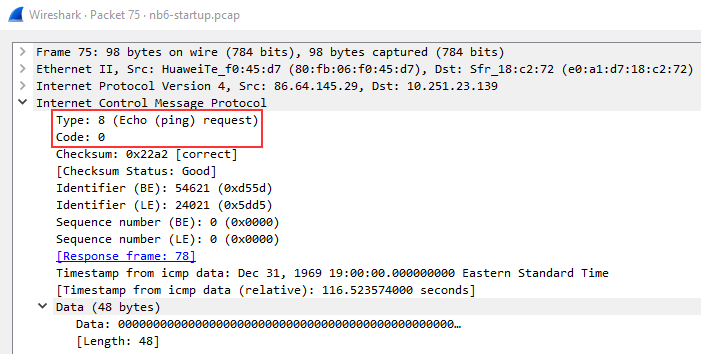
Below we see packet details for a ping request packet. There are a few important things within the packet details that we can take note of first being the type and code of the packet. A type that equals 8 means that it is a request packet, if it is equal to 0 it is a reply packet. When these codes are altered or do not seem correct that is typically a sign of suspicious activity.


There are two other details within the packet that are useful to analyze: timestamp and data. The timestamp can be useful for identifying the time the ping was requested it can also be useful to identify suspicious activity in some cases. We can also look at the data string which will typically just be a random data string.


Wireshark Packet 75 nb6-startup.pcap 
Frame 75: 
Ethernet 
Internet 
v Internet 
Type: 
Code . 
98 bytes on wire (784 bits), 98 bytes captured (784 bits) 
11, src: Dst: 
Protocol Version 4, src: 86.64.145.29, Dst: 1ø.251.23.139 
Control messa e Protocol 
8 (Echo (ping) request) 
Checksum: ex22a2 [correct) 
(Checksum Status: Good) 
Identifier (BE): 54621 (exd55d) 
Identifier (LE): 24ß21 (ex5dd5) 
Sequence number (BE): (øxøøøø) 
Sequence number (LE): (øxøøøø) 
(Response frame: 781 
Timestamp from icmp data: Dec 31, 1969 Eastern Standard Time 
C Timestamp from icmp data (relative): 116.5235740% seconds) 
v Data (48 bytes) 
Data : 
[Length: 48)


ICMP Reply:

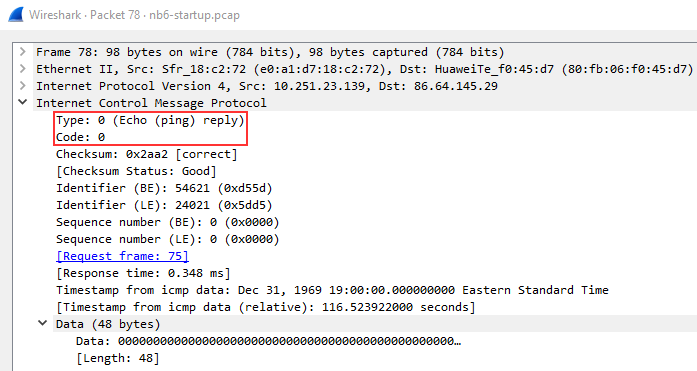
Below you can see that the reply packet is very similar to the request packet. One of the main difference that distinguishes a reply packet is the code, in this case, you can see it is 0, confirming that it is a reply packet.

The same analysis techniques for Request packets apply here as well, again the main difference will be the packet type.


Wireshark Packet 78 • nb6-startup.pcap 
Frame 78: 
Ethernet 
Internet 
v Internet 
Type: 
Code . 
98 bytes on wire (784 bits), 98 bytes captured (784 bits) 
11, src: Dst: 
Protocol Version 4, src: 1ø.251.23.139, Dst: 86.64.145.29 
Control message Protocol 
(Echo (ping) reply) 
Checksum: ex2aa2 [correct) 
(Checksum Status: Good) 
Identifier (BE): 54621 (exd55d) 
Identifier (LE): 24ß21 (ex5dd5) 
Sequence number (BE): (øxøøøø) 
Sequence number (LE): (øxøøøø) 
(Request frame: 751 
[Response time: ø.348 ms) 
Timestamp from icmp data: Dec 31, 1969 Eastern Standard Time 
C Timestamp from icmp data (relative): 116.5239220% seconds) 
v Data (48 bytes) 
Data : 
[Length: 48)


Practical ICMP Packet Analysis

Now that you understand how an ICMP packet is formed and what it contains, we can begin hands-on practical analysis of ICMP packets. Go to the folder /root/Rooms/Wireshark101 on the AttackBox and double click the task8.pcap file to open it in Wireshark; you can also download the pcap on this task.


This network capture only has two protocols so it is up to you whether or not you decide to filter the ICMP protocol or not.


Answer the questions below


What is the type for packet 4?

How to: Once you have the PCAP file loaded into wireshark, click on packet 4.  You  can look in the info section of the packet line, and see what type of ICMP packet it is.  Or you can go down to the internet control message protocol (ICMP) layer in the bottom and it will say what type of packet it is.  It is looking for the number associated with either reply or request.

Answer: 8


What is the type for packet 5?

How to: Just like in the question above click on packet five and either look at the packet info line or at the bottom in the ICMP layer for the answer.

Answer: 0


What is the timestamp for packet 12, only including month day and year?

note: Wireshark bases it’s time off of your devices time zone, if your answer is wrong try one day more or less. 

How to: If you go back up to the packets, scroll down till you get to number 12 and click on it.  Then go down to the packet info section, and click on the internet control message protocol (ICMP) section.  Scroll to the bottom of this section and you will see timestamp, type into TryHackMe the date given and you have this question done.

Answer: May 30, 2013


What is the full data string for packet 18?

How to: Go back up to the packets, click on packet 18. Then go down to the packet info section, and click on the internet control message protocol (ICMP) section.  Scroll to the bottom of this section and you will see data, click on it.  The subtree should expand, then you will see the data string, right click it, a drop down menu will appear take your mouse and hover over copy, then another drop down menu will appear.  Then take your mouse and go down to …as a Hex stream, and click it.  You now have it copied and can paste it over in TryHackMe.

Answer: 08090a0b0c0d0e0f101112131415161718191a1b1c1d1e1f202122232425262728292a2b2c2d2e2f3031323334353637


From <https://tryhackme.com/room/wireshark


TryHackMe Wireshark 101: Task 7 ARP Traffic

 This task has a PCAP file used to get the answers for this room


ARP Overview

ARP or Address Resolution Protocol is a Layer 2 protocol that is used to connect IP Addresses with MAC Addresses. They will contain REQUEST messages and RESPONSE messages. To identify packets the message header will contain one of two operation codes:


  • Request (1)


  • Reply (2)


Below you can see a packet capture of multiple ARP requests and replies.


Tell 192.168.1.3 
•46:e7 
192.168 
Tell 192.168.1.3 
Tell 192.168.1.3 
11 
Tell 192.168.1.3 
12 
13 
192.168 
15 
192.168 
1 ø.øøøøøø 
3 e.e17234 
5 e.eg6ß4e 
25.478711 
25.491556 
25.492485 
25.493377 
Source 
Intel 
ThomsonT 
Intel 
Intel 
Intel 
Compexl_ls 
Compexl_ls 
Destnaton 
aroadcast 
Intel 
aroadcast 
aroadcast 
aroadcast 
Intel 
Intel 
Pr o tocol 
ARP 
ARP 
ARP 
ARP 
ARP 
ARP 
ARP 
Leng th 
42 
82 
82 
82 
42 
Who 
Who 
Who 
Who 
has 
has 
has 
has 
192.168.1.1? 
is at 
.1.1 
192.168.1.1? 
192.168.1.2? 
192.168.1.2? 
is at 
.1.2 
is at 
.1.2 
27


It is useful to note that most devices will identify themselves or Wireshark will identify it such as Intel_78, an example of suspicious traffic would be many requests from an unrecognized source. You need to enable a setting within Wireshark however to resolve physical addresses. To enable this feature, navigate to View > Name Resolution > Ensure that Resolve Physical Addresses is checked.


Looking at the below screenshot we can see that a Cisco device is sending ARP Requests, meaning that we should be able to trust this device, however you should always stay on the side of caution when analyzing packets.


Time 
2 e.eg8594 
3 e.11e617 
4 e.211791 
5 e.216744 
6 e. 31379B 
7 e.33ß433 
Source 
cisc0251 
cisc0251 
cisc0251 
cisc0251 
cisc0251 
cisc0251 
cisc0251 
af : f4 
af. 
•f4:54 
af. 
•f4:54 
af. 
•f4:54 
af. 
•f4:54 
af. 
•f4:54 
af. 
•f4:54 
Destnaton 
road cast 
aroadcast 
aroadcast 
aroadcast 
aroadcast 
aroadcast 
aroadcast 
Pr o tocol 
ARP 
ARP 
ARP 
ARP 
ARP 
ARP 
Length 
Who 
Who 
Who 
Who 
Who 
Who 
Who 
has 
has 
has 
has 
has 
has 
has 
24.166.173.159? Tell 
24 
.166.172.1 
24.166.172.141? Tell 
24.166.172.1 
24.166.173.161? Tell 
24.166.172.1 
65.28.78.76? Tell 65.28.78 1 
24.166.173 
24.166.175 
24.166.173 
.163? 
.123? 
.165? 
Tell 
Tell 
Tell 
24.166.172 
24.166.172 
24.166.172


ARP Traffic Overview


ARP Request Packets:

We can begin analyzing packets by looking at the first ARP Request packet and looking at the packet details.


Wireshark Packet I dns-remcteshell.pcap 
Frame I: 6ø bytes on wire (48ø bits), 6ø bytes captured (48ø bits) 
Ethernet Il, Src: Dst: Broadcast (ff:ff:ff:ff:ff:ff) 
v Address Resolution Protocol (request) 
Hardware type: Ethernet (I) 
Protocol type: IPv4 (øxø8øø) 
Hardware size: 6 
Protocol size: 4 
øeøe 
Opcode : 
Sender 
Sender 
Tar et 
T a rget 
request (I 
RAC address: 
IP address: 
address: 
RAC 
IP address: 
192.168.1.3 
192.168.1.1


Looking at the packet details above, the most important details of the packet are outlined in red. The Opcode is short for operation code and will you tell you whether it is an ARP Request or Reply. The second outlined detail is to where the packet is requesting to, in this case, it is broadcasting the request to all.


ARP Reply Packets:


Wireshark Packet dns-remoteshell.pcap 
Frame 3: 42 bytes on wire (336 bits), 42 bytes captured (336 bits) 
Ethernet 11, src: Dst: 
v Address Resolution Protocol (reply) 
Hardware type: 
Protocol type: 
Hardware size. 
Protocol size. 
Ethernet (I) 
IPv4 (exø8øø) 
(2) 
Opcode: 
Sender 
Sender 
T a rget 
T a rget 
reply 
RAC address: 
IP address: 
RAC address: 
IP address: 
192.168.1.1 
192.168.1.3


Looking at the above packet details we can see from the Opcode that it is an ARP Reply packet. We can also get other useful information like the MAC and IP Address that was sent along with the reply since this is a reply packet we know that this was the information sent along with the message.

ARP is one of the simpler protocols to analyze, all you need to remember is to identify whether it is a request or reply packet and who it is being sent by. 


Practical ARP Packet Analysis


Now that you know what ARP packets and normal traffic look, let's dive into an exercise. 

Start the AttackBox, and go to the folder /root/Rooms/Wireshark101 and double click the task7.pcap file to open it in Wireshark; you can also download the provided PCAP on the task.


This capture has multiple protocols so you may need to use your knowledge of filtering from previous tasks; once you're ready, begin analysis of the capture.


Answer the questions below


What is the Opcode for Packet 6?

How to: Once you have the PCAP open, in the filter at the top type in ARP.  This will filter and show you the ARP protocol packets.  From there you should see packet 6 at the top, click on it.  Packet 6 will be loaded in the section at the bottom of wireshark.  Then click on the Address Resolution Protocol (ARP) section in this bottom area, it will drop down information about the ARP portion of the packet.  In this information look for the Opcode, the answer will be in section.

Answer: Request (1)


What is the source MAC Address of Packet 19?

How to: So keeping the same filter in, go back up to the packets and look for number 19.  Once you find it click  on it, then go back down to the info section of packet 19.  Click on the second layer, it is labeled Ethernet II, the subtree should expand down to show you the destination and source MAC addresses.  Now you could either type this  in or if you click and hold on the source MAC address, you can drag it up to the filter and choose how to add it in.  Once it is added in the you can copy the MAC address and paste it into the TryHackMe answer.

Answer: 80:fb:06:f0:45:d7


What 4 packets are Reply packets?

How to: To find the answer to this question you will need to work those filtering skills.  If you look at the far right side of the filter bar you will see an X, click on the X to clear out the filter bar.  Once the filter bar is cleared out, then you can put in this filter code arp.opcode == 2 , this will filter out all packets except the reply packets.  From there you just need to write the packet numbers in descending order for the answer.  Also do not add and spaces between the commas.

Answer: 76,400,459,520


What IP Address is at 80:fb:06:f0:45:d7?

How to: To get this answer click on anyone of the reply packets.  Click on the Address Resolution Protocol (ARP), then scroll down till you see sender IP address. This will be the answer to this question.

Answer: 10.251.23.1


From <https://tryhackme.com/room/wireshark


Monday, May 30, 2022

Try Hack Me Network Services 2: Task 2 Understanding NFS

What is NFS?
NFS stands for "Network File System" and allows a system to share directories and files with others over a network. By using NFS, users and programs can access files on remote systems almost as if they were local files. It does this by mounting all, or a portion of a file system on a server. The portion of the file system that is mounted can be accessed by clients with whatever privileges are assigned to each file.


How does NFS work?

We don't need to understand the technical exchange in too much detail to be able to exploit NFS effectively- however if this is something that interests you, I would recommend this resource:  https://docs.oracle.com/cd/E19683-01/816-4882/6mb2ipq7l/index.html
First, the client will request to mount a directory from a remote host on a local directory just the same way it can mount a physical device. The mount service will then act to connect to the relevant mount daemon using RPC.
The server checks if the user has permission to mount whatever directory has been requested. It will then return a file handle which uniquely identifies each file and directory that is on the server.

If someone wants to access a file using NFS, an RPC call is placed to NFSD (the NFS daemon) on the server.  This call takes parameters such as:
  •  The file handle
  •  The name of the file to be accessed
  •  The user's, user ID
  •  The user's group ID
 
These are used in determining access rights to the specified file. This is what controls user permissions, I.E read and write of files.
 
What runs NFS?
Using the NFS protocol, you can transfer files between computers running Windows and other non-Windows operating systems, such as Linux, MacOS or UNIX.
A computer running Windows Server can act as an NFS file server for other non-Windows client computers. Likewise, NFS allows a Windows-based computer running Windows Server to access files stored on a non-Windows NFS server. 

More Information:
Here are some resources that explain the technical implementation, and working of, NFS in more detail than I have covered here. 

https://www.datto.com/library/what-is-nfs-file-share

 http://nfs.sourceforge.net/

 https://wiki.archlinux.org/index.php/NFS 


Answer the questions below 

To see the answer, just highlight the green area.

What does NFS stand for?

How to: This answer can be found in the Whats NFS paragraph above.

Answer: Network File System


What process allows an NFS client to interact with a remote directory as though it was a physical device?

How to: The answer to this question can be found in the How NFS works paragraph above.

Answer: mounting

Hint: What does your Operating System do to access a physical drive?


What does NFS use to represent files and directories on the server?

How to: The answer to this question can be found towards the end of the How NFS works paragraph above.

Answer: file handle


What protocol does NFS use to communicate between the server and client?

How to: The answer to this question can be found towards the end of the How NFS works paragraph above.

Answer: RPC


What two pieces of user data does the NFS server take as parameters for controlling user permissions? Format: parameter 1 / parameter 2

How to: The answer to this question can be found towards the end of the How NFS works paragraph above.

Answer: user id / group id


Can a Windows NFS server share files with a Linux client? (Y/N)

How to: The answer to this question can be found in the What runs NFS section.

Answer: Y


Can a Linux NFS server share files with a MacOS client? (Y/N)

How to: The answer to this question can be found in the What runs NFS section.

Answer: Y


What is the latest version of NFS? [released in 2016, but is still up to date as of 2020] This will require external research.

How to: I went to Google and searched "NFS version".  One of the entries that came up was for the wiki page for NFS (https://en.wikipedia.org/wiki/Network_File_System), I clicked on that entry and scrolled down to the different versions, I was able to find the answer in there.

Answer: 4.2


Tuesday, May 24, 2022

Try Hack Me Network Services 2: Task 5 Understanding SMTP

What is SMTP?

SMTP stands for "Simple Mail Transfer Protocol". It is utilised to handle the sending of emails. In order to support email services, a protocol pair is required, comprising of SMTP and POP/IMAP. Together they allow the user to send outgoing mail and retrieve incoming mail, respectively.

The SMTP server performs three basic functions:

  •  It verifies who is sending emails through the SMTP server.
  •  It sends the outgoing mail
  •  If the outgoing mail can't be delivered it sends the message back to the sender

Most people will have encountered SMTP when configuring a new email address on some third-party email clients, such as Thunderbird; as when you configure a new email client, you will need to configure the SMTP server configuration in order to send outgoing emails.


POP and IMAP

POP, or "Post Office Protocol" and IMAP, "Internet Message Access Protocol" are both email protocols who are responsible for the transfer of email between a client and a mail server. The main differences is in POP's more simplistic approach of downloading the inbox from the mail server, to the client. Where IMAP will synchronise the current inbox, with new mail on the server, downloading anything new. This means that changes to the inbox made on one computer, over IMAP, will persist if you then synchronise the inbox from another computer. The POP/IMAP server is responsible for fulfiling this process.


How does SMTP work?

Email delivery functions much the same as the physical mail delivery system. The user will supply the email (a letter) and a service (the postal delivery service), and through a series of steps- will deliver it to the recipients inbox (postbox). The role of the SMTP server in this service, is to act as the sorting office, the email (letter) is picked up and sent to this server, which then directs it to the recipient.

We can map the journey of an email from your computer to the recipient’s like this:


1. The mail user agent, which is either your email client or an external program. connects to the SMTP server of your domain, e.g. smtp.google.com. This initiates the SMTP handshake. This connection works over the SMTP port- which is usually 25. Once these connections have been made and validated, the SMTP session starts.


2. The process of sending mail can now begin. The client first submits the sender, and recipient's email address- the body of the email and any attachments, to the server.


3. The SMTP server then checks whether the domain name of the recipient and the sender is the same.


4. The SMTP server of the sender will make a connection to the recipient's SMTP server before relaying the email. If the recipient's server can't be accessed, or is not available- the Email gets put into an SMTP queue.


5. Then, the recipient's SMTP server will verify the incoming email. It does this by checking if the domain and user name have been recognised. The server will then forward the email to the POP or IMAP server, as shown in the diagram above.


6. The E-Mail will then show up in the recipient's inbox.

This is a very simplified version of the process, and there are a lot of sub-protocols, communications and details that haven't been included. If you're looking to learn more about this topic, this is a really friendly to read breakdown of the finer technical details- I actually used it to write this breakdown:

https://computer.howstuffworks.com/e-mail-messaging/email3.htm


What runs SMTP?

SMTP Server software is readily available on Windows server platforms, with many other variants of SMTP being available to run on Linux.


More Information:

Here is a resource that explain the technical implementation, and working of, SMTP in more detail than I have covered here.

https://www.afternerd.com/blog/smtp/


Answer the questions below


What does SMTP stand for?

How to: This can be found in the What is SMTP? section.

Answer: simple mail transfer protocol


What does SMTP handle the sending of? (answer in plural) 

How to: This can be found in the What is SMTP? section.

Answer: emails


What is the first step in the SMTP process?

How to: This can be found in the How does SMTP work? section. In the breakdown number 1.

Answer: SMTP handshake


What is the default SMTP port?

How to: This can be found in the How does SMTP work? section.  In the breakdown number 1.

Answer: 25


Where does the SMTP server send the email if the recipient's server is not available? 

How to: This can be found in the How does SMTP work? section.  In the breakdown number 4.

Answer: SMTP queue


On what server does the Email ultimately end up on?

How to: This can be found in the How does SMTP work? section.  In the breakdown number 5.

Answer: POP/IMAP


Can a Linux machine run an SMTP server? (Y/N) 

How to: This can be found in the What runs SMTP? section.

Answer: Y


Can a Windows machine run an SMTP server? (Y/N)

How to: This can be found in the What runs SMTP? section.

Answer: Y


TryHackMe Write-Up | Sysinternals Task 9  Miscellaneous

BgInfo "It automatically displays relevant information about a Windows computer on the desktop's background, such as the computer ...